Configuring Studio v2.0
Before connecting to studio it is important that an admin user is created for studio called iShareData. If this user does not already exist see Creating an Admin User on how to do this.
Studio will be used for most of the tasks associated with the SDW. Within Studio you need to create a Workflow Connection that points to the SDW.
- Open Studio
- Expand the Workflow node and right click on Connections and select New Connection.
- Create a Workflow Postgres Connection to the SDW.
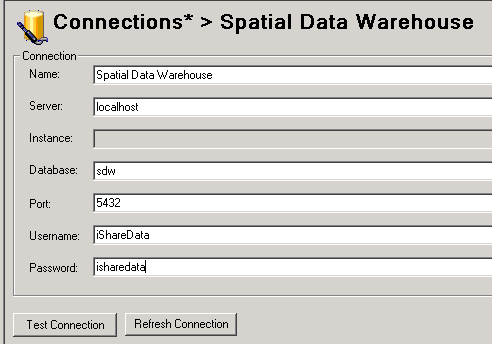
- For most cases the following details will be suitable for a connection but if in doubt check with Astun Support;
- Enter a Name for your Connection; Server: localhost, Database: sdw Port: 5432 username: iShareData password: isharedata.
- Click Test Connection. You should see a Connection OK dialog. Click OK.
- Click Save to save your new connection details.